
Subscription Relationships
Every subscription, membership, license and contract as one record with its plan, payment, entitlements, health and renewals.
These images are illustrations of the concept, not screenshots of the actual product.
Overview
In Subscriber Bot, each recurring commitment is modeled as a relationship: a subscription, membership, license or contract with a provider, a plan, a price, a billing interval and a renewal date. This concept illustrates the three places where people work with those records: the portfolio list, a single relationship's detail page and the dialog for adding a new one.
Most people keep this information in scattered emails, bank statements and spreadsheets, if they keep it at all. The terms that matter, such as when something renews, whether it auto-renews, which card pays for it and what the plan actually includes, are hard to find at the moment a decision has to be made. The design gives every relationship one structured record and puts the decisions next to it.
The Relationships page is a searchable table with Kind and Status filters. Each row shows the subscription name with a category tag, its kind, a status pill such as Active, Paused or Cancelled, the monthly amount, the renewal date and a health bar, with Previous and Next paging at the foot. Opening a row leads to a detail page headed by the relationship name, its status, price and next renewal, with Edit, Pause and Cancel actions. Cards below cover plan and pricing with an auto-renew switch, entitlements, the payment method, a health score gauge beside attached documents, and a renewal timeline that separates past renewals from upcoming ones. The Add a relationship dialog captures a label, kind, provider, plan, amount and currency, billing interval, renewal date, auto-renew and notes.
Relationships are the core record that the rest of the product builds on. The overview totals them, inbox messages point back to them, invoices and stored documents attach to them, and provider pages and insights compare them against alternatives.
What this concept shows
- A relationships table with search by label and Kind and Status filters
- Columns for subscription name with category tag, kind, status, monthly amount, renewal date and a health bar
- Status pills for Active, Paused and Cancelled relationships
- A detail page with Edit, Pause and Cancel actions next to the price and next renewal
- Plan and pricing, entitlements and payment method cards, with an auto-renew switch
- A health score gauge shown beside attached contract and receipt documents
- A renewal timeline that separates past renewals from upcoming ones
- An Add a relationship dialog with kind, provider, plan, amount, currency, billing interval, renewal date, auto-renew and notes
How it works
- Open Relationships from the navigation to see the full portfolio as a table.
- Search by label or filter by kind and status to narrow the list.
- Open a relationship to review its plan, entitlements, payment method, health and renewal timeline.
- Use Edit, Pause or Cancel on the detail page to act on that relationship.
- Choose Add relationship to open the dialog for a subscription that is not yet tracked.
- Fill in the provider, plan, amount, billing interval and renewal date, set auto-renew and create the relationship.
Who it's for
- Individuals with many streaming, software and membership subscriptions
- Freelancers and small businesses tracking software licenses
- IT and procurement teams responsible for vendor contracts
- Finance teams reconciling recurring commitments
Illustrations
3 illustrations of this concept. Select one to view it full size.
Relationships Portfolio Table
This illustration shows the Relationships page inside a browser window, with a dark left navigation listing Overview, Relationships, Providers, Universal Inbox, Invoices, AI Agents and Workflows. An Add relationship button sits at the top right. Below it, a search field for finding relationships by label is paired with Kind and Status dropdowns. The table columns are Subscription, Kind, Status, Amount per month, Renews on and Health. Sample rows include streaming, storage, productivity, learning, security and fitness services, each with a bracketed category tag, a kind of Subscription, Membership, License or Contract, and a status pill reading Active, Paused or Cancelled. Each row ends with a horizontal health bar, and Previous and Next links sit at the bottom for paging. The design demonstrates one consistent view across very different kinds of recurring commitments.
Relationship Detail with Plan, Payment and Renewal Timeline
This illustration shows the detail page for a sample premium video streaming relationship. The header carries its name, an Active badge, the monthly price and the next renewal date, with Edit, Pause and Cancel buttons on the right. A Plan and pricing card lists the plan name, price and billing interval above an auto-renew toggle that is switched on. An Entitlements card lists what the plan includes, such as seats and storage. A Payment method card shows a card with only its last four digits visible. A Health score card pairs a gauge with attached documents, a contract PDF and a receipt PDF. The Renewal timeline on the right runs vertically, with past renewals shown in a muted state and the nearest upcoming renewals highlighted as attention items. The design demonstrates how the terms, the money and the dates of one relationship can be read together.
Add a Relationship Dialog
This illustration shows an Add a relationship dialog open over a dimmed relationships list, with the subtitle Define the terms of this new connection. The form is laid out in two columns. Label is a text field with an example such as an annual software license, and Kind is a dropdown set to Subscription. Provider and Plan are dropdowns with placeholder examples. Amount is a numeric field with a stepper and a USD currency selector, next to a Billing interval dropdown set to Monthly. Renews on is a date field with a calendar picker, beside an Auto-renew toggle that is switched on. A Notes area holds additional details. The footer offers Cancel and a primary Create relationship button. The design shows how a relationship that is not discovered automatically can still be recorded with the same structure as every other one.
Topics
- subscription tracker
- manage memberships and licenses
- contract renewal tracking
- pause or cancel subscription
- auto-renew settings
- subscription entitlements
- add a subscription manually
- subscription health score
- renewal timeline
Related concepts
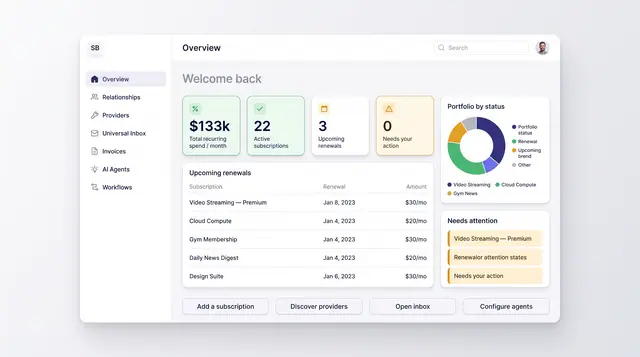
Portfolio Overview Dashboard
One home screen for recurring spend, active subscriptions, upcoming renewals and anything that needs your attention.
2 illustrations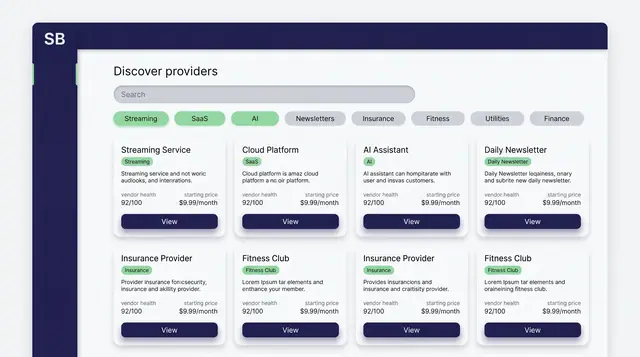
Provider Discovery and Comparison
Browse providers by category, then compare their plans, vendor health, churn risk, price history and alternatives before you subscribe.
2 illustrations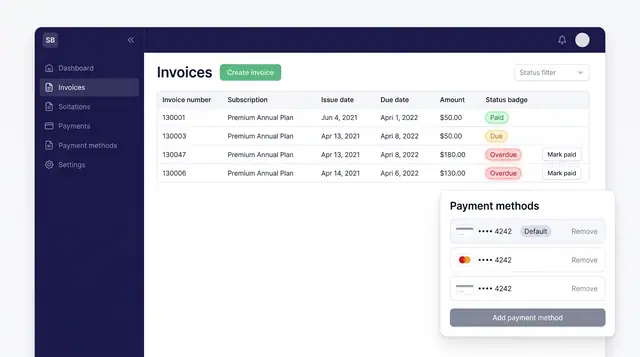
Invoices and Payment Methods
Track every subscription invoice by status and keep the cards that pay for them in one place, with a clear default.
1 illustration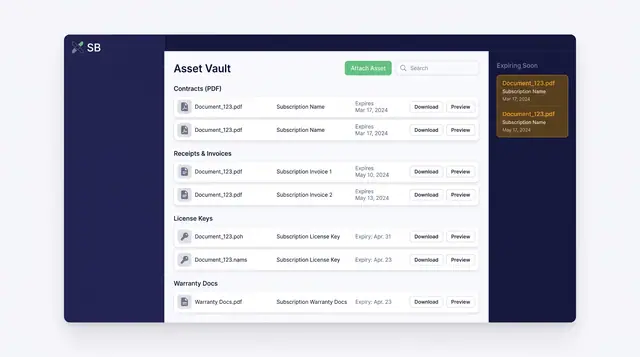
Digital Asset Vault
Contracts, receipts, license keys and warranty documents stored against the subscriptions they belong to, with expiries in view.
1 illustration
Part of an industry solution
This concept appears in a cross-product solution on burdenoff.com — see how it works alongside other Burdenoff products to solve a problem in that industry.