
Invoices and Payment Methods
Track every subscription invoice by status and keep the cards that pay for them in one place, with a clear default.
These images are illustrations of the concept, not screenshots of the actual product.
Overview
Invoices and Payment Methods brings the billing side of every subscription into one screen in Subscriber Bot. This concept illustrates an invoice table that tracks each bill from issue to payment, together with a panel of the saved payment methods used to settle them.
Subscription bills usually arrive as separate emails and card charges, and a missed payment often surfaces only when a service stops working. Card details drift out of date across dozens of providers, and nobody is sure which card pays for what. The design gathers the invoices in one place with a clear status for each, and it keeps the payment methods beside them so that a problem with a bill and the card that pays it can be dealt with together.
The Invoices page has a Create invoice button and a Status filter. The table lists each invoice with its number, the subscription it belongs to, the issue date, the due date, the amount and a status badge of Paid, Due or Overdue. Overdue rows carry a Mark paid button, so a bill settled outside the product can be recorded straight from the list. A Payment methods panel lists the saved cards by their last four digits, with one marked Default and a Remove action on each, and an Add payment method button at the bottom. The navigation also points to payments and payment methods as their own areas.
Invoices connect to the rest of the portfolio. Each one belongs to a relationship, billing messages in the Universal Inbox point to the same obligations, and receipts can be kept in the Digital Asset Vault. Workflow automation is designed to route incoming invoices to the right follow-up.
What this concept shows
- An invoice table with invoice number, subscription, issue date, due date, amount and status
- Status badges for Paid, Due and Overdue invoices
- A Mark paid action on overdue invoices
- A Status filter and a Create invoice button for recording bills
- A Payment methods panel with saved cards shown only by their last four digits
- A Default marker, a Remove action on each card and an Add payment method button
How it works
- Open Invoices from the navigation to see every subscription invoice in one table.
- Use the Status filter to focus on due or overdue invoices.
- Mark an overdue invoice as paid once it has been settled, or create an invoice to record a new bill.
- Review the saved payment methods and see which card is the default.
- Remove an outdated card or add a new payment method.
Who it's for
- Individuals who want to know which subscription bills are due or overdue
- Households sharing the cost of recurring services
- Small business owners and bookkeepers reconciling software bills
- Finance teams tracking accounts payable for vendor subscriptions
Illustrations
1 illustration of this concept. Select one to view it full size.
Invoices Table with Payment Methods Panel
This illustration shows the Invoices page with Invoices selected in a collapsible left navigation that also lists a dashboard, payments, payment methods and settings, and a notification bell and avatar in the top bar. A Create invoice button sits beside the heading and a Status filter dropdown on the right. The table columns are Invoice number, Subscription, Issue date, Due date, Amount and Status. Sample rows for an annual plan show one invoice as Paid, one as Due and two as Overdue, and each overdue row has a Mark paid button. A Payment methods panel overlaps the lower right, listing three saved cards shown only by their last four digits, with the first marked Default and a Remove link on every row, above an Add payment method button. All invoice numbers, dates and amounts are sample data.
Topics
- subscription invoices
- track overdue subscription payments
- invoice status paid due overdue
- manage payment methods
- default payment card
- subscription billing history
- recurring bill tracker
- mark invoice as paid
Related concepts
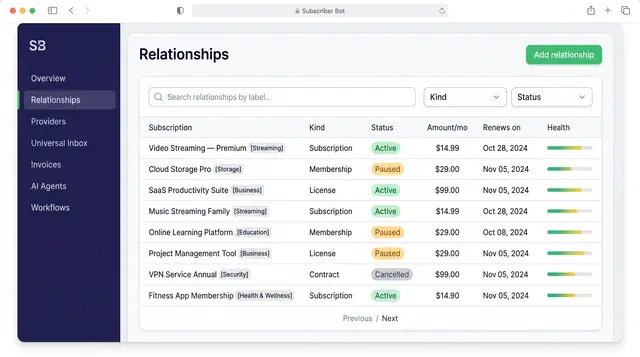
Subscription Relationships
Every subscription, membership, license and contract as one record with its plan, payment, entitlements, health and renewals.
3 illustrations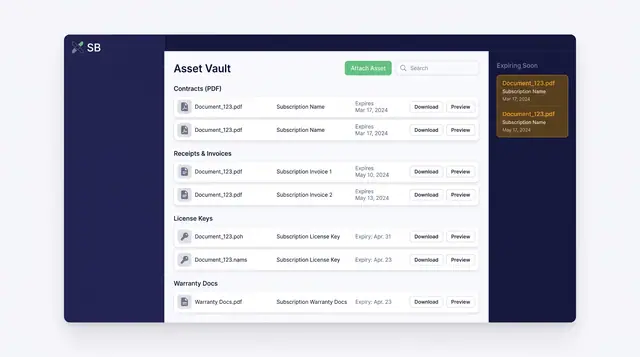
Digital Asset Vault
Contracts, receipts, license keys and warranty documents stored against the subscriptions they belong to, with expiries in view.
1 illustration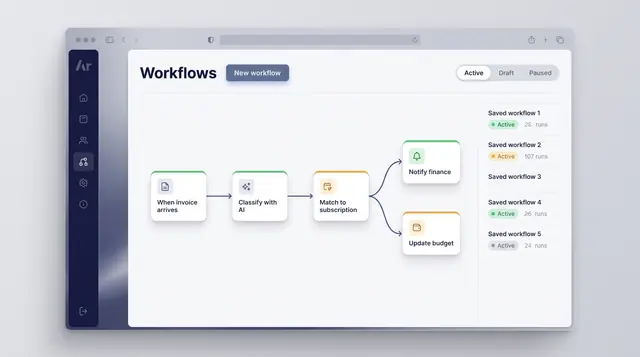
Workflow Automation
Turn a recurring event into a reliable routine: classify what arrives, match it to a subscription and branch into the right follow-up.
1 illustration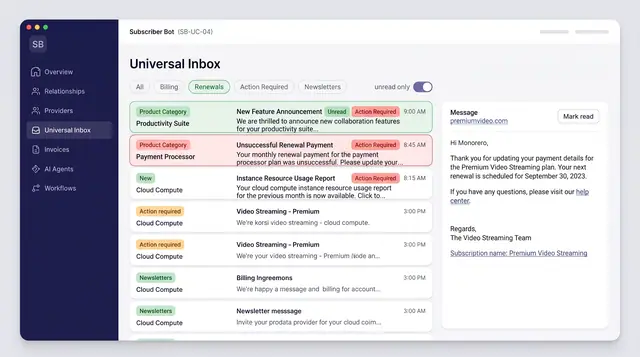
Universal Inbox with AI Triage
Every subscription message from email, SMS, chat and push merged into one inbox, categorized and sorted by what needs action.
3 illustrations